
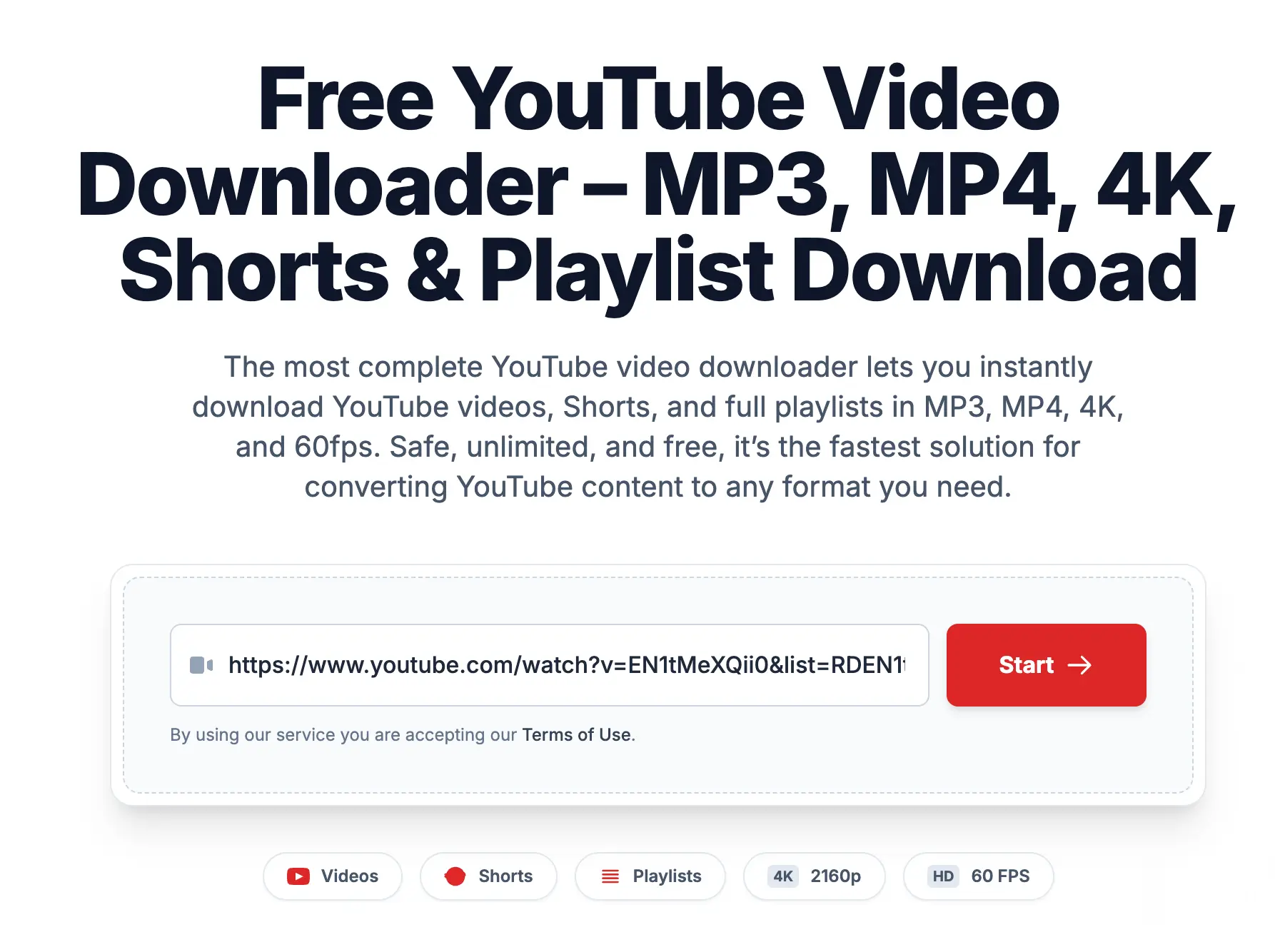
YouTube hosts more video than any single person could watch in a lifetime, but not every situation lets you stream it — a flight with no Wi-Fi, a gym session where you just want the audio, a tutorial you need to reference offline. Downloading a copy locally solves all of these, and the right approach depends mostly on what you're planning to do with the file afterward.
Turning a Video Into Audio
A lot of what people search for isn't really a video at all — it's a song, a podcast episode, an interview, or a lecture where the visuals don't matter. Converting to an audio-only file keeps the size small and makes it easy to drop into a music app or playlist. Quality matters here more than people expect: a file converted at a low bitrate can sound noticeably worse on headphones, so it's worth checking that a converter offers something close to 320kbps rather than defaulting to a compressed, low-quality rip. If you're building a library of tracks rather than saving a single clip, look for a tool that lets you set that quality once rather than adjusting it every time.
Saving the Full Video
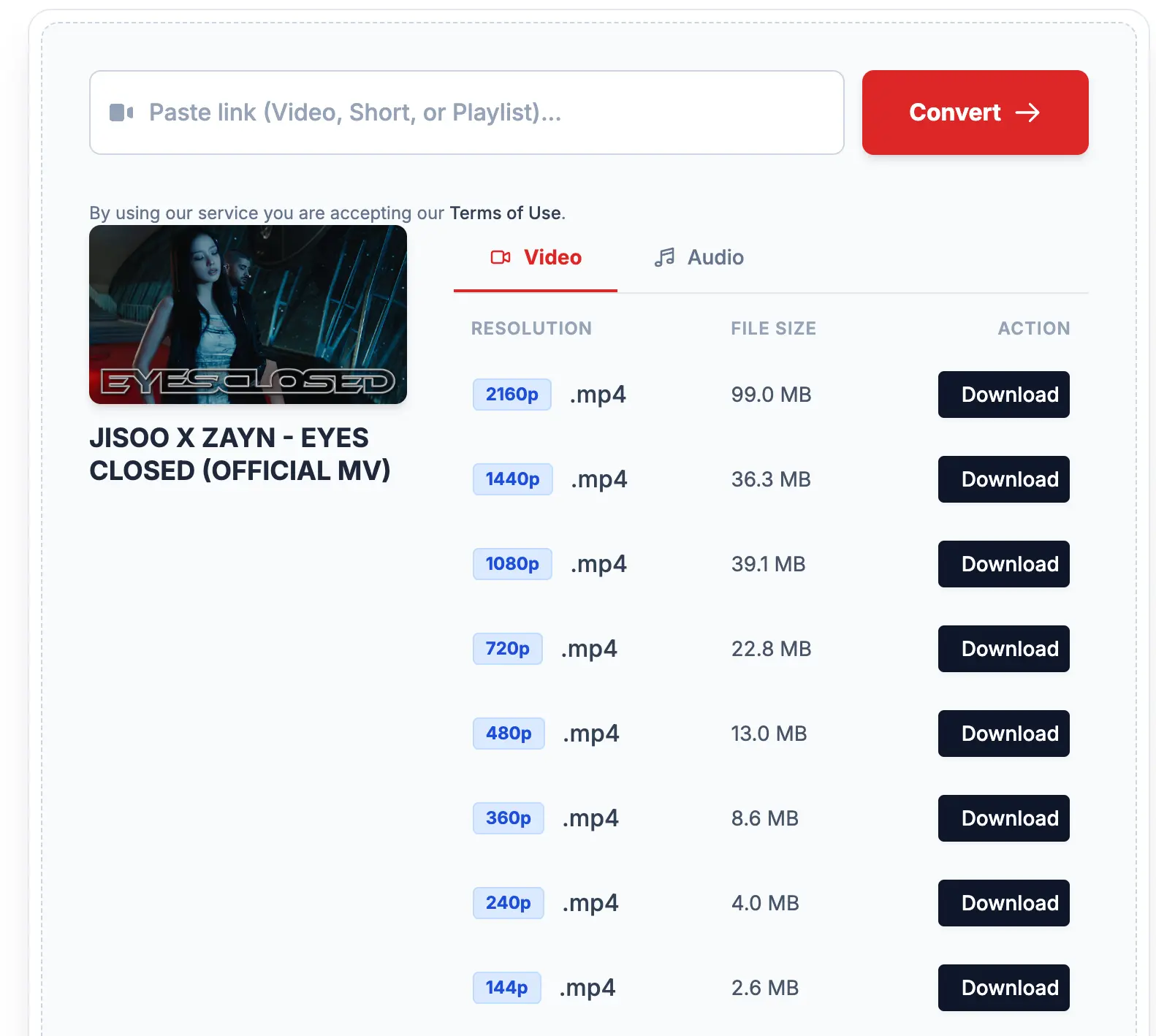
When the visuals matter — a workout routine, a recipe, a design walkthrough — you want the video file itself, and the resolution you pick should match where you'll actually watch it. There's little point downloading a 4K file for a phone screen; it just eats storage and takes longer to save. A 720p or 1080p file plays back identically on most phones and laptops. Where 4K or 60fps genuinely helps is on a larger screen or when the footage itself is detailed — nature documentaries, gameplay, or anything with fast motion, where a lower frame rate can look noticeably choppier.
Shorts, Reels, and Short-Form Clips
Short-form video behaves a little differently from a regular upload. Because it's shot vertically and runs under a minute, it's often downloaded specifically to be reused elsewhere — reposted to another platform, clipped into a compilation, or just saved before it gets taken down. The main thing to check is that the aspect ratio is preserved on download; a vertical clip that gets stretched or letterboxed into a horizontal frame loses the point of saving it in the first place.
Downloading More Than One Video at a Time
If you're trying to save an entire course, album, or multi-part series, downloading each video individually gets tedious fast. A playlist-aware downloader picks up every video in the list in one pass, in the order they appear, which matters if you're archiving something you intend to watch or listen to sequentially later. It's worth checking, too, whether a tool skips videos that have been removed or made private rather than failing the whole batch.
Why "Y2mate" Shows Up in So Many Searches
Y2mate has been around long enough that its name has become something close to a generic term for "download a YouTube video," the way people say "Google it" regardless of which search engine they're using. That's partly a sign of how much traffic these tools get, and partly why the search results are crowded with lookalike domains and misspellings. The common frustrations people report are slow processing during peak hours, download caps that kick in after a few uses, and pop-ups that interrupt the actual download. None of that is unique to one site — it's a byproduct of running a free service at scale — but it's worth knowing what to expect and comparing a couple of options rather than assuming the first result is the fastest one.
Using It From a Phone Versus a Computer
Browser-based downloaders have an advantage over dedicated apps: there's nothing to install, nothing to update, and no platform restrictions to work around. On a computer, that means the tool works identically in Chrome, Firefox, or Safari. On a phone, it means there's no app-store approval process standing between you and the download — which matters because dedicated YouTube-downloader apps are routinely pulled from both the App Store and Google Play. The trade-off is that a browser tool depends on your mobile browser's own download handling, so where the file actually lands (Downloads folder versus a prompt to choose a location) varies a bit between Android and iOS.